Miscellaneous Preferences
The Miscellaneous preferences determine the application behavior at start-up, the default scaling for histograms, and how the application accesses system resources. Choose Miscellaneous in the Preferences dialog to open the Miscellaneous preferences, shown below.
Miscellaneous preferences
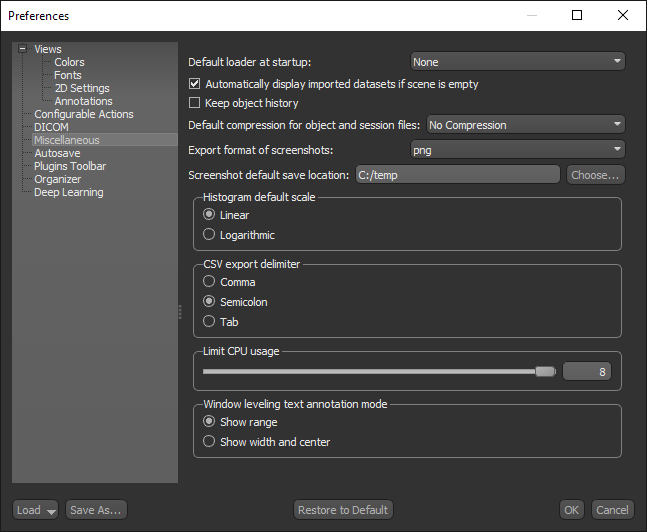
| Item | Description |
|---|---|
| Default loader at startup |
Determines the behavior of the application at start-up as follows:
None… Only the main application window will appear onscreen at start-up. However, you can import files at anytime with the items available in the File menu. Image Loader… The Import Datasets dialog will appear automatically at start-up. In this dialog you can import image data (see Using the Image Loader). DICOM Loader… The DICOM Files dialog will appear automatically at start-up. In this dialog you can import image data (see Using the DICOM Loader). Mesh Loader… The Open dialog will appear automatically at start-up. In the Open dialog, you can select and import a number of mesh files (see Importing Meshes). |
| Automatically display imported datasets if scene is empty | If selected, imported datasets will be shown automatically in the workspace if the current scene is empty. |
| Keep object history | Saves the object history in objects exported in the ORSObject (*.ORSObject extension ) file format (see Extracting Object Histories). |
| Default compression for object and session files |
Lets you save objects and session files with or without compression.
No Compression… If selected, files will be saved without compression. zstd… If selected, files will be saved with zstd lossless compression. The Zstandard, commonly known by the name of its reference implementation zstd, is a lossless data compression algorithm developed by Yann Collet at Facebook and was released as open-source software in 2016. Note Lossless compression is a class of data compression algorithms that allows the original data to be perfectly reconstructed from the compressed data. |
| Export format of screenshots | Lets you choose the file format — BMP, EPS, GIF, JPEG, PNG, PPM, or TIFF — for fullscreen screenshots triggered by a configured action (see Capturing Fullscreen Screenshots). |
| Screenshot default save location | Lets you choose a save location for fullscreen screenshots triggered by a configured action (see Capturing Fullscreen Screenshots). |
| Histogram default scale | Determines the default scaling for histograms — Linear or Logarithmic. |
| CSV export delimiter | Determines the delimiter for files exported in the CSV file format — Comma, Semi-colon, or Tab. |
| Limit CPU usage | Determines the CPU usage limits for Dragonfly. The application can be limited from one CPU core to the total number of cores available in your system. |
| Window leveling text annotation mode | Lets you choose the default mode — Show range or Show width and center — for the Window Leveling text annotation. |
